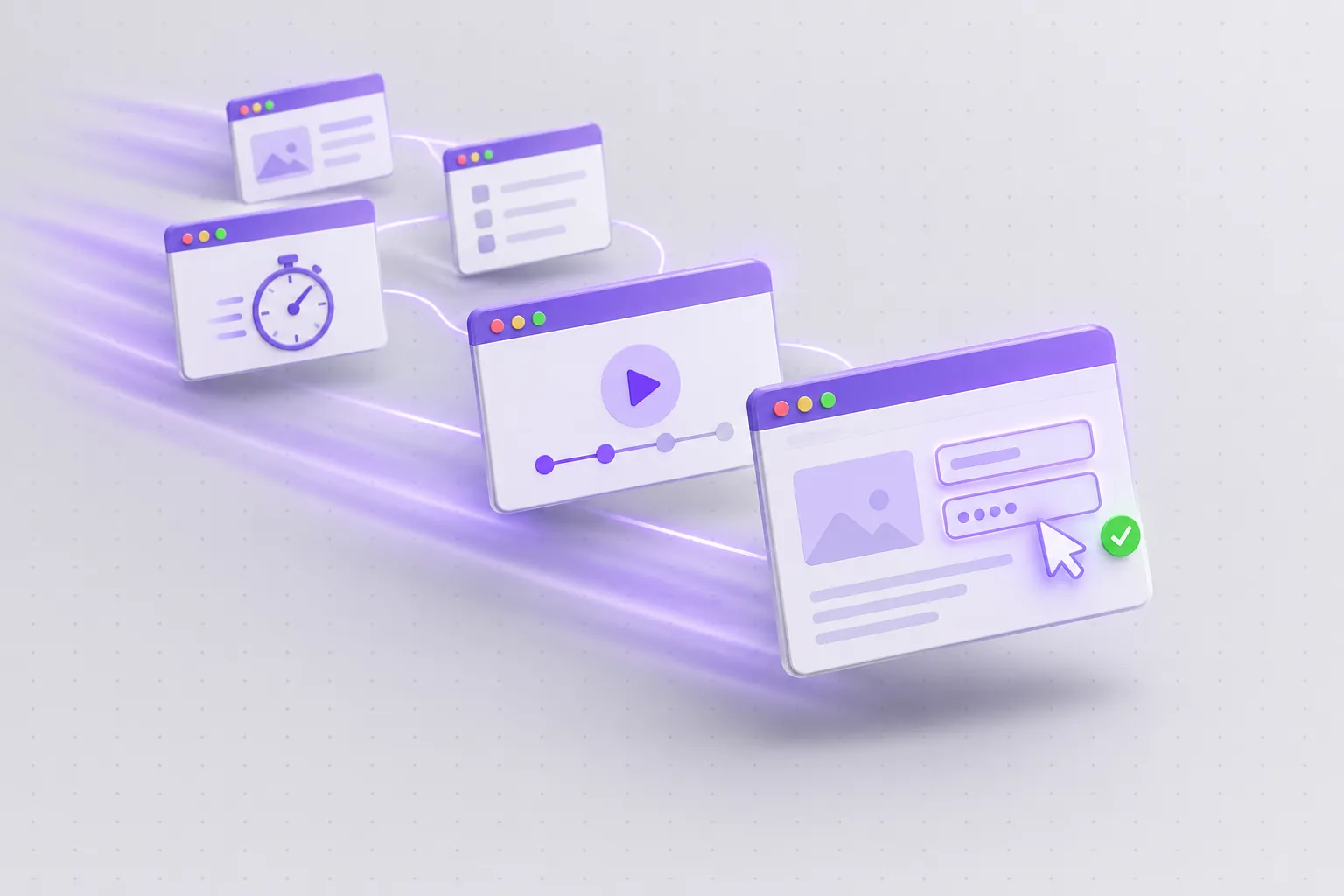
What is a browser agent?
A browser agent is an AI model that operates a web browser to finish a task. It opens pages, reads them, clicks, types, scrolls and fills in forms until the job is done, then reports what it found. You describe the outcome in plain words - "list the plans on these three pricing pages", "fill in this form with test data" - instead of writing selectors and scripts that break when a page changes.
Browser Use is an open-source agent built for this: it is MIT-licensed, runs on any LLM, and works locally or on Browser Use Cloud, the company's hosted service. Browser Use MCP is how an AI assistant reaches it. The Model Context Protocol (MCP) lets Claude, Cursor, Codex and other clients call tools on a server, and the FlyMy.AI MCP includes Browser Use among its 1,500+ tools. The assistant you already use can hand a task to a cloud browser, follow it, and use the result in the rest of its work.
Why give your AI agent a real browser
Search and fetch tools cover a lot, but much of the web is built for people rather than for APIs: pricing pages that render with JavaScript, search filters, multi-step forms and dashboards behind a login. A browser reaches whatever a person can reach.
- It works on pages, not endpoints. The agent uses a site the way a visitor does, so it needs no API, no scraping rules and no selectors.
- It runs in the cloud. Browser Use Cloud hosts the browser, so nothing runs on your laptop and the task keeps going while your assistant does other work.
- You can watch and step in. The person who started a task gets a private live view and can take over for a login, a 2FA code or a CAPTCHA.
- Logins carry over. A saved browser profile keeps a login for the next task.
- It leaves evidence. Each task returns its output, status and cost. Recordings, screenshots and downloads can be saved as files, and now a read-only replay can be shared.
What's new in Browser Use MCP
This release moves FlyMy.AI's Browser Use tools to Browser Use Cloud v4, with gpt-6-luna as the default model. Each change is a parameter or an action your assistant can call, and the platform log lists every one of them.
Ultrafast presets
bu-ultrafast is Browser Use's fastest preset for short interactive flows; bu-fast reasons more per step.
Follow-ups while a task runs
send_task queues a new instruction for a running task, or with interrupt: true the task acts on it now.
Continue a finished session
A follow-up keeps the conversation, files and saved profile, even after the browser has closed.
Keep the browser for 30 minutes
keep_alive: true holds it open after the task, for manual testing or the next step.
Public replay links
set_browser_share_link turns a read-only replay of the task, its steps and screenshots on or off.
Judge-checked results
judge: true returns a verdict with its reasoning; the task is a success only when it passes.
Thinking up to max
thinking_level takes xhigh and max on models that offer them, such as gpt-6-luna.
Works out of the box
No Browser Use key: FlyMy.AI's shared account, at Browser Use's own price with 0% markup.
Our own test sessions on 11 November 2026; times and costs as Browser Use Cloud reported them.
How to set up Browser Use MCP in a minute
You add one MCP server to your assistant, sign in and ask. There is no Browser Use account to create and no key to copy.
1. Add FlyMy.AI to your assistant
The FlyMy.AI MCP lives at one URL: https://mcp-agents.flymy.ai/mcp.
- Claude Code: run
claude mcp add --transport http flymyai https://mcp-agents.flymy.ai/mcp, then/mcpto sign in. - Codex: run
codex mcp add flymy --url https://mcp-agents.flymy.ai/mcp, thencodex mcp login flymy. - Claude and Claude Desktop: Settings, Connectors, Add custom connector, then paste the URL.
- Cursor and other MCP clients: add the same URL as a remote MCP server.
2. Sign in
Sign in with your FlyMy.AI account when the client asks. Tasks run on FlyMy.AI's Browser Use account and are billed to your FlyMy.AI balance; with your own Browser Use plan, you can save your key on the connection instead.
3. Ask for a task in plain words
Your assistant finds the Browser Use actions by itself. Start with something small:
Open example.com in a browser on bu-ultrafast and tell me the page title.
4. Follow, steer and stop
The assistant waits with wait_for_browser_task and shows you the output and
the cost. Then it can send a follow-up, make a replay link or stop the browser with
stop_browser_task, which you want once you are done.
Prefer to let the assistant do the setup? Paste this into any assistant:
Read https://flymy.ai/skill.md and https://flymy.ai/mcp/browser-use.md. Help me connect Browser Use MCP to this assistant. Then help me run this task: Open news.ycombinator.com in a real browser, collect the top 10 story titles and links, and show me the recording.
Pick the right model: bu-ultrafast, bu-fast or gpt-6-luna
The model decides how fast the agent moves and how carefully it reads each page. New sessions use gpt-6-luna; the two Ultrafast presets are built for speed.
-
Short, interactive flows. A form, a few clicks, a quick read.
bu-ultrafastfastest -
Quick, with more reasoning. Thinks more per step than bu-ultrafast, for flows with a few more decisions in them.
bu-fastpreset -
Economical and capable. Takes every thinking level from disabled to max, for research, comparisons and harder pages.
gpt-6-lunadefault
The Ultrafast presets take no thinking_level and stay fixed for the session, so
choose them when you start the task; they run without the managed proxy unless you set
proxy_country_code. On gpt-6-luna, thinking_level goes from
disabled to max; use xhigh or max for pages
that need careful reading, such as a long comparison.
Compare three project-management tools in a browser with thinking_level max.
Steer a browser task while it runs
Long tasks rarely go exactly to plan: halfway through, you want one more field, a different
filter or a second page. Until this release you waited for the task to end and started again.
Now send_task reaches a task while it is still running.
send_task reaches a task: queued for next, run at once with interrupt: true, or continued after the task, in the same browser while it is open.- Queued (default). The instruction goes into Browser Use's session queue and the task takes it up next. The response carries a
queued_message_id, andwait_for_browser_taskwaits until the queued instruction has run. - Interrupt. With
interrupt: truethe task cancels its current work and runs your instruction now. - After it finishes. A follow-up continues the same session with its conversation, files and saved profile: in the same browser while it is still open, or in a fresh browser once it has closed.
keep_alive: truekeeps the browser open up to 30 minutes after the task.
A running task takes only the instruction text. To change model,
thinking_level or judge, send the follow-up after the task finishes;
a session on an Ultrafast preset keeps its preset.
Start a browser task that compares the pricing pages of Asana, Trello and ClickUp and lists each plan with its monthly price. While it is still running, tell it to also note which plans include a free trial.
Share a read-only replay of a browser session
Sometimes you want to show how the agent got there: to a client, a teammate or a support
thread. set_browser_share_link turns on a public, read-only link to the session's
replay on Browser Use's page, with the task, the agent's steps and its screenshots, and no
control of the browser. Turn it off when you are done; turning it on again restores the same
link.
Share only what you would show. Anyone with the link sees what the session saw, including pages behind a login. The live view is different: it gives full control of a running browser and is meant only for the person who started the task. Never post it.
Make a public read-only replay link of my last browser task.
When the review is over, ask: "Turn off the replay link of my last browser task."
Check results with the judge
A browser agent can report success and still miss part of the task. judge: true
asks Browser Use's LLM judge to grade the finished task against its instruction. The verdict
comes back as judgement, with verdict, reasoning and
failure_reason, and is_success follows it: the task counts as a success
only when the verdict passes. The judge adds a small model charge to the task.
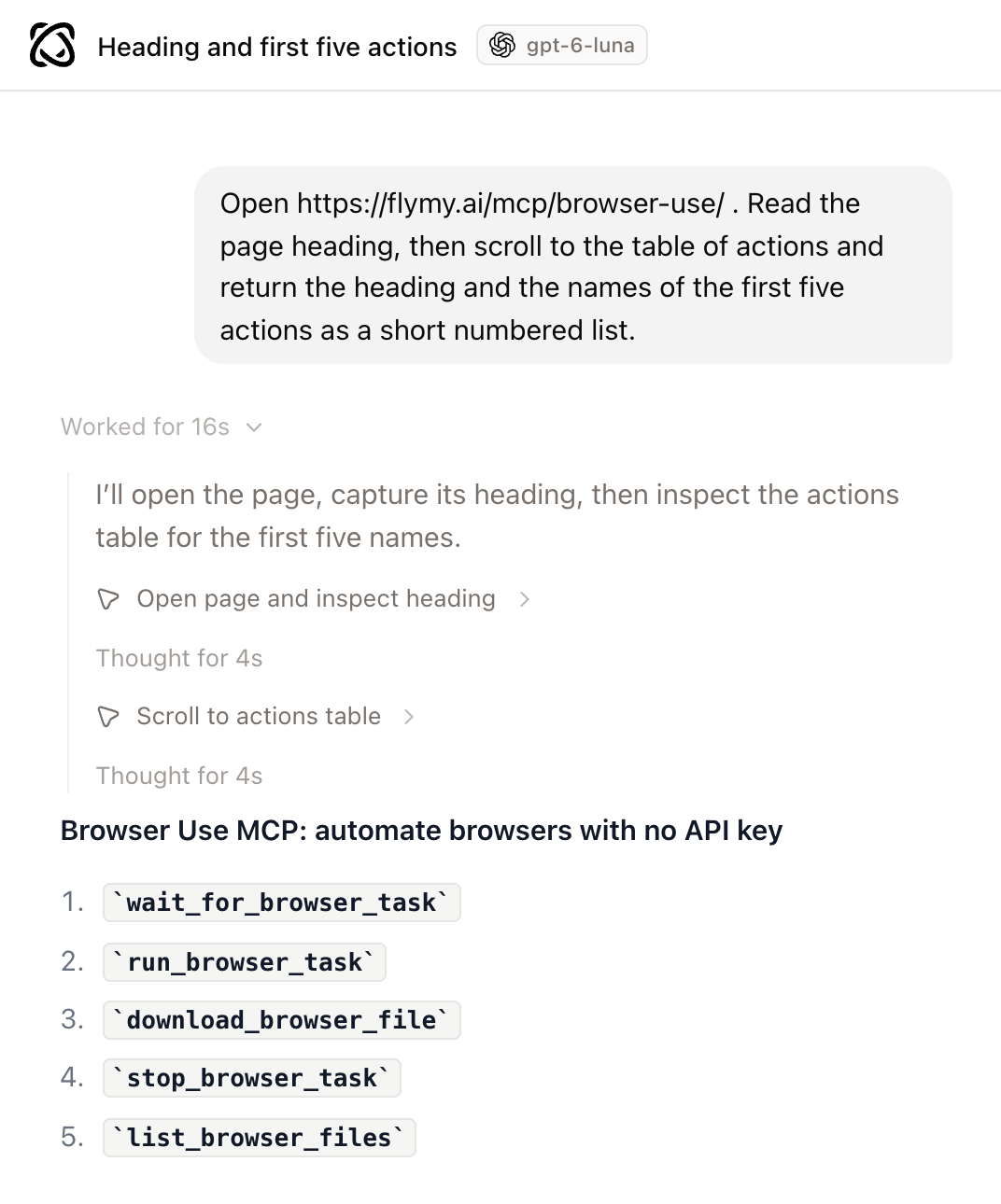
In the test session shown above, the judge passed the task with this reasoning:
"The agent successfully navigated to the specified URL, identified the page heading, scrolled to the actions table, and extracted the first five actions as requested."
Turn the judge on when nobody watches the run: scheduled checks, unattended jobs and results that feed the next step of a workflow.
Find the opening hours of the Louvre in a browser and have the judge check the answer.
Use cases with ready prompts
Paste any of these into an assistant connected to FlyMy.AI and replace the example site with yours.
1. QA a website on mobile and desktop
Open your pages at phone and desktop sizes, save screenshots and get a list of what looks broken; browser screens can be 320 to 6144 pixels wide. For a whole site, with every link checked and a published report page, use the Website QA agent template.
Open https://example.com in a browser at 390x844 and again at 1440x900. On each size, check the header, the main call to action and the footer, save a PNG screenshot of each view as a file, and give me a short report with the screenshots and what to fix first.
2. Fill in forms in seconds with bu-ultrafast
In our test, bu-ultrafast filled in the seven fields of httpbin.org's sample order form, submitted it and returned the server's echo in 11 seconds, for $0.0024. The agent is told to ask before purchases, sends or anything it cannot undo, so name the final step when you want it done.
On bu-ultrafast, open https://httpbin.org/forms/post, fill in the pizza order form with test data (name Ada Test, size Medium, toppings Bacon and Extra Cheese, delivery 19:30) and submit it. Show me what the server echoed back.
3. Research you can steer
Comparisons take longer, and you often think of one more question halfway through. Start the task, add to it while it runs, and let the default model think harder on dense pages.
In a browser with thinking_level high, find the monthly prices of the paid plans of 1Password, Bitwarden and Dashlane on their own pricing pages. While it runs, ask it to also check whether each one offers a family plan.
4. Show a client what the agent did
Send a read-only replay instead of screenshots pasted into a document: the client sees the task, every step and the answer, and you turn the link off after the review.
Run a browser task that goes through the checkout of https://example.com up to the payment page without paying, then make a public read-only replay link I can send to my client.
5. A weekly check with a verified result
A scheduled agent can run the same browser task every week. With the judge on, a run passes only when the judge agrees, so a missing price or a broken button shows up as a failure instead of a cheerful summary.
Create an agent that every Monday at 9:00 opens https://example.com/pricing in a browser, checks that every plan shows a price and a Sign up button, and runs the browser task with judge: true. Schedule it weekly and run it once now so I can see the result.
Browser Use MCP vs Playwright MCP vs computer use
There are several ways to give an AI agent a browser. They differ in where the browser runs and in who plans each step. The table sticks to what each project documents; the sources are linked below it and were checked on 11 November 2026.
| Approach | Browser Use MCP on FlyMy.AI | Playwright MCP | Claude computer use | Browser Use library |
|---|---|---|---|---|
| Where the browser runs | Browser Use Cloud | Where you run the server; the standard setup starts it with npx | A sandboxed computer you provide, such as a VM or container with a virtual display | A Browser Use Cloud browser by default, or a local one |
| How the model works the page | Browser Use's agent runs the whole task from one instruction and returns the result | Your assistant calls one browser action at a time on accessibility snapshots, with no vision model needed | Claude reads screenshots and controls the mouse and keyboard | The model writes Python against the Chrome DevTools Protocol in a persistent REPL |
| What you set up | One MCP URL and a sign-in | Node.js and an MCP config entry | The environment and the tool loop on the Claude API | Python 3.11+ and the browser-use package |
| Keys | None, or your own Browser Use key | None for the server | A Claude API key | A Browser Use API key for the defaults, or your own LLM key |
| License and price | Browser Use's own price, 0% markup, billed to your FlyMy.AI balance | Apache-2.0, free | Standard Claude tool use pricing | MIT; cloud browsers and models are paid |
Sources: Playwright MCP README, Claude computer use tool docs, Browser Use README, FlyMy.AI Browser Use docs.
How to choose. Pick Browser Use MCP when you want a task done in the cloud from one instruction, with a live view, follow-ups and a shareable replay, and without running a browser yourself. Pick Playwright MCP when you want your assistant to drive a local browser step by step, for example while testing your own app. Pick computer use when the task goes beyond the browser into desktop applications.
What it costs
On FlyMy.AI, Browser Use usage on the shared account is billed to your FlyMy.AI balance at Browser Use's own reported price, with 0% markup: the browser time, the agent's model and any proxy traffic. With your own Browser Use key on the connection, the usage is paid on your Browser Use account instead.
| Our test task, 11 November 2026 | Model | Time | Cost |
|---|---|---|---|
| Read the title of example.com | bu-ultrafast | 4 s | $0.0012 |
| Fill in and submit a seven-field form | bu-ultrafast | 11 s | $0.0024 |
| Read a page heading and a table, judge on | gpt-6-luna | 16 s | $0.011 |
Times and costs are Browser Use Cloud's own figures for these sessions. Through an assistant, add a few seconds for the MCP round trip. Prices follow Browser Use's current rates.
max_cost_usdcaps each task's model and search spend, $1 by default; browser time and proxy traffic come on top, and one session never goes past $10.- A browser kept open with
keep_alivekeeps costing until it closes, so stop the sessions you no longer need.
FAQ
What is Browser Use MCP?
Browser Use MCP lets an AI assistant run tasks in a real cloud browser through the Model Context Protocol. Your assistant describes the task in plain words, Browser Use's agent does it in Browser Use Cloud, and the assistant gets back the output, the status, the cost and any files.
Do I need a Browser Use API key?
No. On FlyMy.AI, Browser Use runs on FlyMy.AI's shared account and is billed to your FlyMy.AI balance at Browser Use's own price, with 0% markup. With your own Browser Use plan, you can save your key on the connection instead.
Is Browser Use free and open source?
The Browser Use agent is open source under the MIT license and runs on any LLM, locally or on Browser Use Cloud, which is paid by usage. Through FlyMy.AI you pay Browser Use's own price per task, with no Browser Use subscription.
How do I use Browser Use with Claude Code, Claude or Cursor?
Add the FlyMy.AI MCP at https://mcp-agents.flymy.ai/mcp and sign in. In Claude Code, run claude mcp add --transport http flymyai https://mcp-agents.flymy.ai/mcp, then /mcp. In Claude, use Settings, Connectors, Add custom connector; in Cursor, add the URL as a remote MCP server. Then ask for a browser task.
What is the difference between Browser Use MCP and Playwright MCP?
Playwright MCP runs a browser where you run its server, and your assistant calls one browser action at a time on accessibility snapshots. Browser Use MCP hands the whole task to Browser Use's agent in the cloud and returns the result, with a live view, follow-ups, replay links and an optional judge.
Which model should I use: bu-ultrafast, bu-fast or gpt-6-luna?
Start with the default gpt-6-luna, which is economical and takes every thinking level up to max. Use bu-ultrafast for short interactive flows such as a form, and bu-fast when such a flow needs more reasoning per step. The Ultrafast presets stay fixed for the session.
Can a browser agent log in to websites?
Yes, with you in the loop. The person who starts a task gets a private live view and can take over for a password, a 2FA code or a CAPTCHA, then let the agent continue. A saved browser profile keeps the login for the next task.
How much does a browser task cost?
Browser Use's own price for the browser, the model and any proxy traffic, with 0% markup. In our tests, a page title on bu-ultrafast cost $0.0012, a seven-field form $0.0024 and a judged read on gpt-6-luna $0.011. Each task's model and search spend is capped by max_cost_usd, $1 by default, and one session never goes past $10.
Is a public replay link safe to share?
The replay is read-only: viewers see the task, the steps and the screenshots but cannot control the browser. They do see everything the session saw, including pages behind a login, so turn the link off when you are done. Never share the live view link, which controls the running browser.
Give your agent a real browser
Add FlyMy.AI to your assistant and run your first browser task in a minute. No Browser Use key, 0% markup on usage.