New · Sharing · Sites
Anyone with the link: share an AI-built site like a Google Doc
Ask an AI agent for a landing page, an event page or a small dashboard, and FlyMy.AI publishes it as a site. Until now, sharing that site meant two different links: one for you and the people you invited, another for everyone else. Now every site has one link, https://app.flymy.ai/sites/<id>, and it works like a Google Doc. You and the people you invite by email always open it. Turn on Anyone with the link, and anyone who has it opens the page, even without signing in. Everyone else sees a short notice that the site is private or does not exist. Here is what anyone with the link means for an AI-built or vibe-coded website, how to share one step by step, and what a visitor can and cannot see.
 By the FlyMy.AI team
12 min read

One link for every site
A FlyMy.AI site is a web page or a small web app that an agent publishes and FlyMy.AI serves: HTML, CSS, JavaScript and assets, built in a chat with your assistant. It can be a landing page, an RSVP page for a team dinner, a report or a dashboard. You ask for it in plain words, and the agent publishes it with publish_site.
Until this release, a site had two addresses. You and the people you invited opened it at app.flymy.ai/sites/<id>. Visitors with the public link needed a second address, under app.flymy.ai/a/. Two links for one page are easy to mix up: the one you open is not the one your visitors can open, and an agent has to know which one to hand out.
Now there is one link: https://app.flymy.ai/sites/<id>. Sharing is no longer a separate address. It is a check FlyMy.AI makes every time someone opens the link: who is asking, and what the owner allows. That is how Google Docs works, and the site's Share dialog now looks like Google's, with People with access, General access and one Copy link button.
What "anyone with the link" means
Anyone with the link is a sharing setting, not a list of people. On Google Drive, it means anyone on the internet with the link can open the file without signing in to a Google Account (Google Drive Help). A FlyMy.AI site works the same way. Whoever has https://app.flymy.ai/sites/<id> can open the page, signed in or not, for as long as the setting stays on.
Three things follow, on every platform that has this setting:
- The link is the key. Anyone who has it can open the page and forward it. Share this way only the pages you would be fine seeing forwarded.
- It is not a search listing. FlyMy.AI asks search engines not to index site pages, so people reach a page through its link.
- It can be undone. Set General access back to Restricted, and the link stops working for everyone you did not add by name.
"Anyone with the link can view" is the read-only form of the setting. On a FlyMy.AI site a visitor can view and use the page, and can make their own copy only when you allow remix.
Who opens your site's link
One link, four kinds of visitors. What each of them gets depends on who they are and on one setting, General access.
| Who opens the link | General access: Restricted | General access: Anyone with the link |
|---|---|---|
| You, the owner | The site page: Share, versions and what powers it | The same |
| People you invited | The site after they sign in with the invited email, with the role you gave them | The same |
| Anyone else, signed in or not | "This site is private or does not exist." | The page, at the version the link shows, with Remix when you allow it, and Report |
The notice for a private site reads in full: "This site is private or does not exist. If someone sent you this link, ask them to share it with you." A site that does not exist gets the same words, so the link does not tell a stranger that a private site is there, and the notice never says a site was deleted. A signed-out visitor can sign in from there, and if they were invited, the page opens.
How to share an AI-built site in four steps
1. Connect your assistant to FlyMy.AI
The FlyMy.AI MCP has one URL, https://mcp-agents.flymy.ai/mcp. Add it to your client and sign in.
- Claude Code: run
claude mcp add --transport http flymyai https://mcp-agents.flymy.ai/mcp, then/mcpto sign in. - claude.ai, Claude Desktop and ChatGPT: open Settings, Connectors, Add custom connector, then paste the URL and sign in.
- Codex, Cursor and other MCP clients: add the same URL as a remote MCP server.
2. Ask for the site and its link
Describe the page. The agent writes it, publishes it with publish_site and answers with the site's url, its one link. A new site starts Restricted: only you can open it.
Publish a one-page RSVP site for my team dinner and give me its link with Anyone with the link on.
3. Choose who can open it
Open the site in the app and click Share. Under People with access, add an email and pick Can view, Can remix or Can edit. Under General access, pick Restricted or Anyone with the link. Or ask your assistant:
Invite alex@example.com to my team dinner site with view access, and keep the site Restricted.
Turn on Anyone with the link for my team dinner site and give me the link.
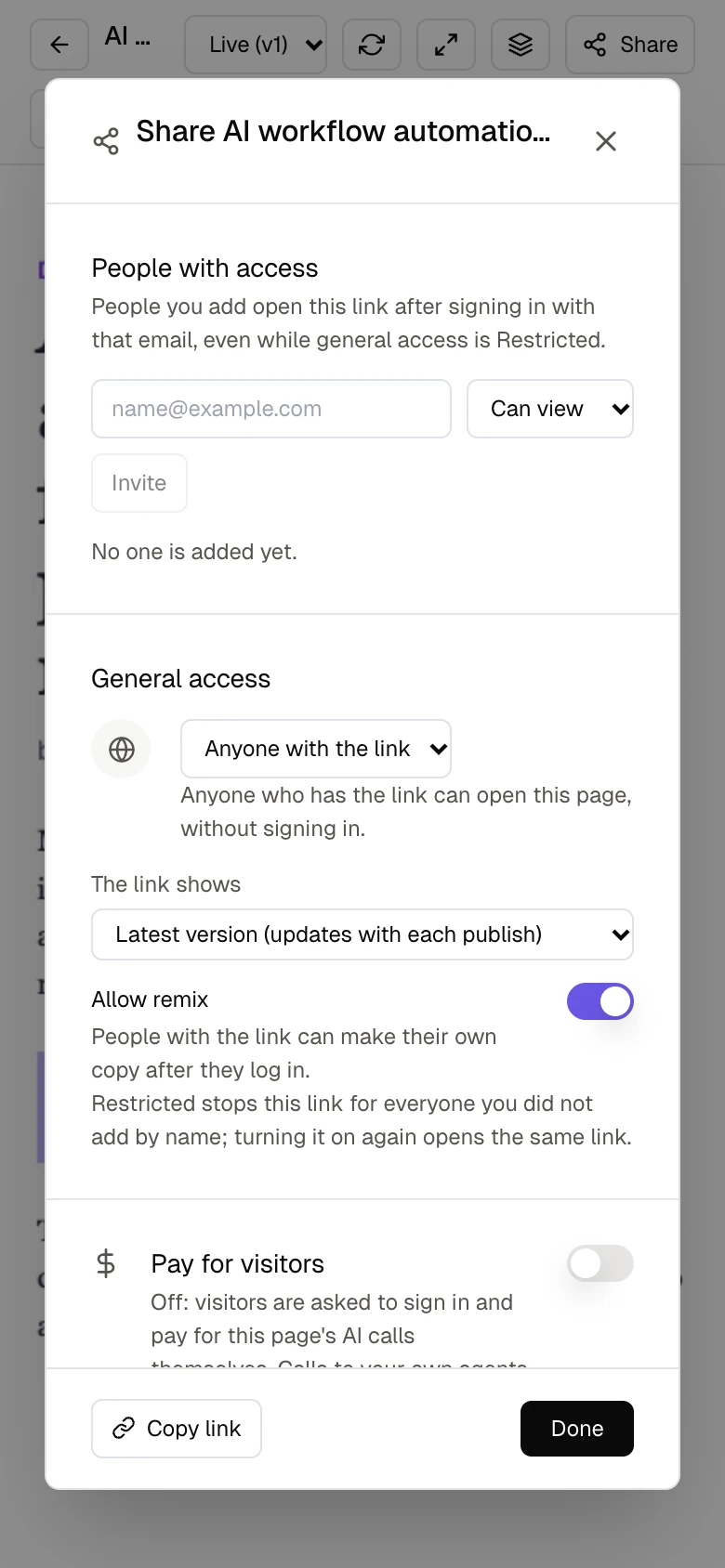
4. Send the link
Click Copy link, or take the url your assistant gave you, and paste it into an email, a chat or a text message. FlyMy.AI does not email the people you invite, so send them the link yourself. Each invited person needs a FlyMy.AI account with the email you used: they sign in, and the page opens. The site also appears in their list of sites shared with them.
Latest or pinned: which version the link shows
Each time your agent publishes a change, the site gets a new version: v1, v2, v3. The link shows one of two things, and you choose which in The link shows:
- Latest version (updates with each publish). Visitors always see the newest version. Use it for a live page that your agent keeps updating, like a daily report or a status page.
- Only vN. The link stays on one version while you keep publishing. Use it when you send a page for review or sign-off and keep working on the next version.

Pin my team dinner site's link to version 2 while I try changes in a new version.
Pinning changes only what visitors with the link see. You keep opening and publishing every version on the site page.
Let people remix your site
Allow remix lets people with the link make their own copy after they sign in. The copy is a new site in their account, which they change and publish as their own; your site does not change, and the copy remembers where it came from. A visitor with the link copies the version the link shows. People you invited with Can remix or Can edit can copy it too, even while the site is Restricted.
Remix the site at the link I paste into my account and change its colors to green.
Copies that people already made stay theirs, even when you later remove their access.
Who pays for a visitor's AI calls
Some sites do more than show a page: they call AI, for example to answer a question or make an image. The Share dialog decides who pays for those calls with Pay for visitors:
- Off: visitors are asked to sign in and pay for the page's AI calls themselves. Calls to your own agents are always paid by you and count toward the daily cap.
- On: you pay for your visitors' calls, with optional limits in dollars a day in total and a day per visitor.
The site's page shows its calls and spend today and over the last 7 days. get_site_usage also tells your assistant who paid for them: you, a visitor or your sponsor pool.
What a visitor sees, and what stays private
A visitor gets the page and a thin bar above it: the FlyMy.AI name, the site's name and its owner, a full-screen button, Remix when you allow it, and Report. On a phone the bar keeps the same buttons as icons.
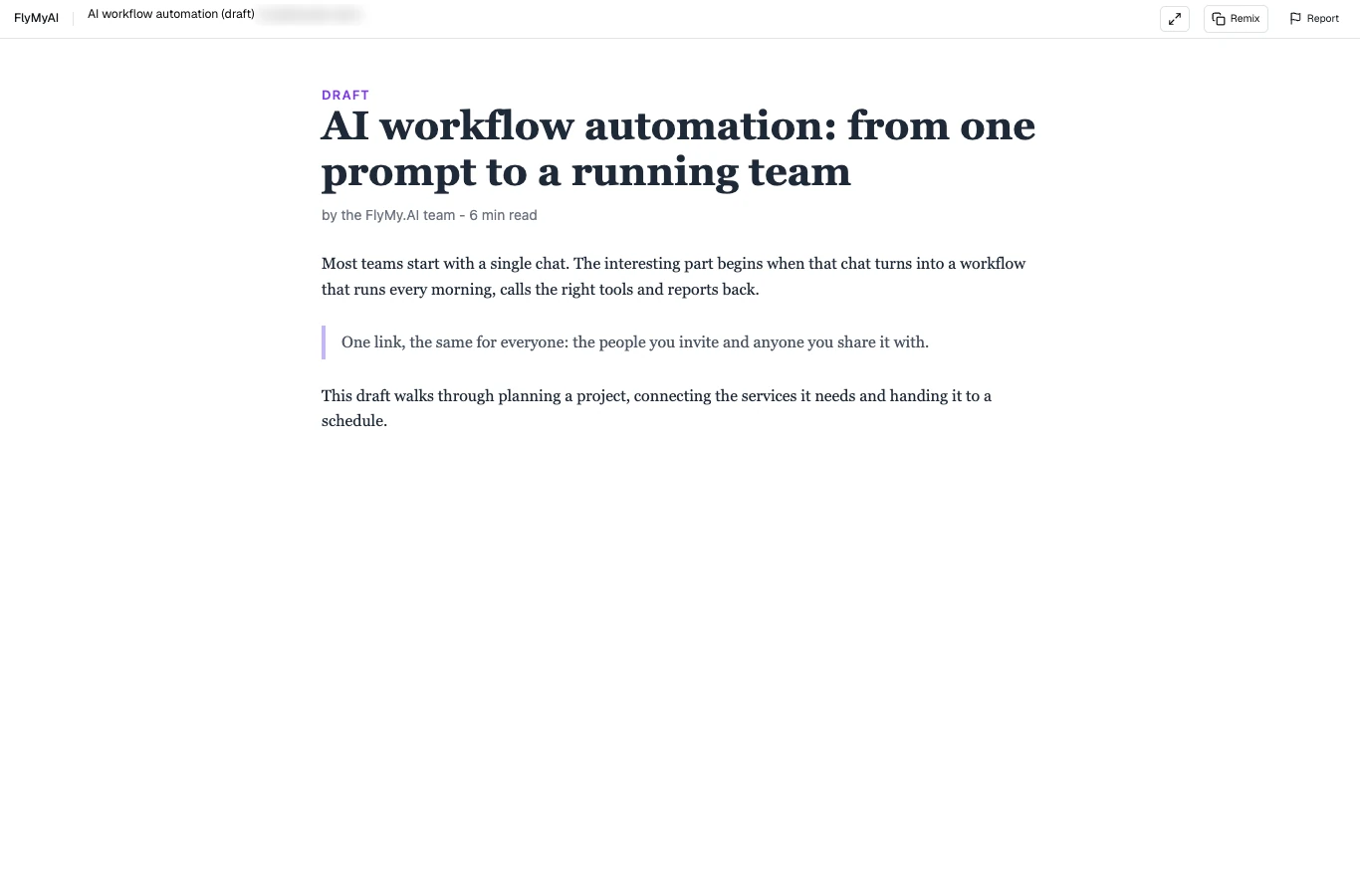
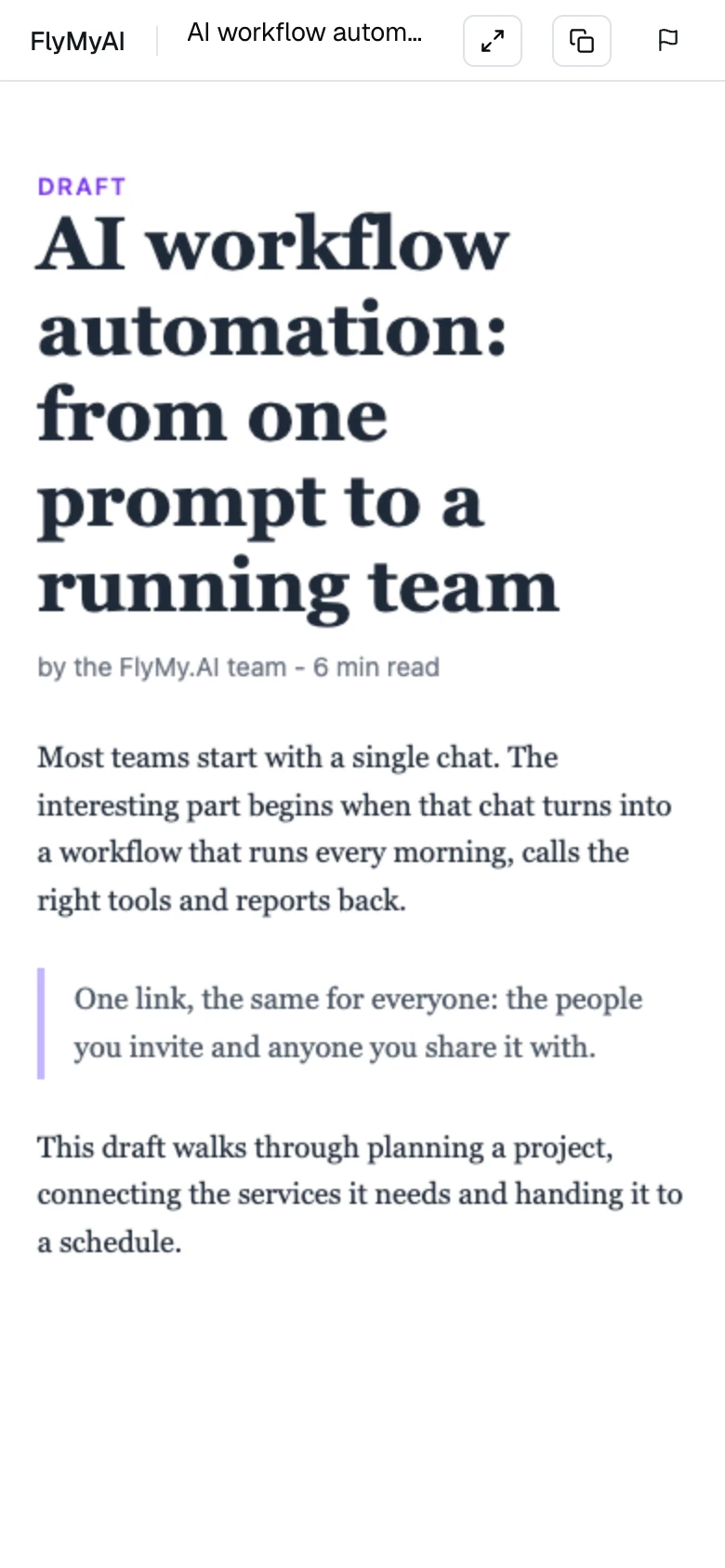
What a visitor does not get:
- the site's list of files and its other versions;
- the chat where your agent built the site, and the agent's task;
- who else you invited, and your settings for paying for visitors;
- your account, your agents, your connections or any right to edit.

The page itself is a web page, so its HTML, CSS and JavaScript reach the visitor's browser like those of any website. Never put a key or a password into a page. FlyMy.AI runs the page sandboxed, with no cookies, keys or FlyMy.AI API access, and the link opens the page inside FlyMy.AI, never your account.
How to make a website private again
Set General access to Restricted, or ask your assistant to turn the link off. From then on the link opens only for you and the people you invited, and everyone else sees the private notice.
Make my team dinner site private and keep access only for alex@example.com.
There is no new link to make. Turning Anyone with the link on again opens the same link for everyone who has it. To keep out people who already have the link, leave the site Restricted and invite by email the people who should keep access.
To take one person's access away, remove them under People with access, or ask:
Remove alex@example.com's access to my team dinner site.
Share sites from an AI agent: the MCP tools
Everything in the Share dialog is also a tool in the FlyMy.AI Agents MCP, so Claude, ChatGPT, Codex or Cursor can share a site for you. Every site tool takes the site's id or its link, so you can paste https://app.flymy.ai/sites/<id> into a chat and say what to change.
| Tool | What it does |
|---|---|
publish_site | Publishes a page (HTML, CSS, JavaScript and assets) as a site, or its next version, and returns url, the site's one link |
share_site | Turns Anyone with the link on or off, pins the version the link shows and allows remix |
invite_to_site | Gives one FlyMy.AI account view, remix or edit access by the email it verified |
revoke_site_access | Removes one person's access; copies they already made stay theirs |
get_site | Reads one site; for someone else's site shared by its link, it answers role: "viewer" with the version the link shows |
list_sites | Lists your sites with their links, or the sites shared with you |
remix_site | Copies a site into your account as a new site you own |
get_site_usage | Shows what powers your site and what it costs |
The full list of tools is in the Agents MCP reference.
Older /a/ links
Sites shared before this release may have a public link of the older form https://app.flymy.ai/a/.... Those links keep working for now and will stop in a later release. Share the /sites/<id> link instead: Copy link in the Share dialog copies it, and get_site and list_sites return it.
Anyone with the link on Google Drive, Claude and FlyMy.AI
If you know Google Docs sharing settings, you already know this model. Claude's artifacts use a similar one. Here is how the three compare, from each product's own help pages as of 23 November 2026.
| Google Drive | Claude artifacts | FlyMy.AI sites | |
|---|---|---|---|
| Link settings | General access: Restricted or Anyone with the link, plus your organization on work accounts | Pro, Max and Ultra: "Only you" or "Anyone with the link", plus invites by email; Team and Enterprise: "Only people invited", "Anyone at" your organization, or "Anyone with the link" when an owner has turned on external sharing | General access: Restricted or Anyone with the link |
| Opens without signing in | Yes, with Anyone with the link: "without signing in to a Google Account" | Most artifacts shared with Anyone with the link: "without a Claude account or sign-in"; some, such as docs, need a sign-in | Yes, while Anyone with the link is on |
| Named people | Added by email: Viewer, Commenter or Editor | Invited by email: Can view, Commenter or Can edit | Invited by email: Can view, Can remix or Can edit |
| What the link shows | The file | The artifact | The latest version, or one pinned version |
Sources: Google Drive Help: share and manage access to files and folders; Claude Help Center: share artifacts.
FAQ
What does "anyone with the link" mean?
It is a sharing setting: whoever has the link can open the page, without being added by name and, on a FlyMy.AI site, without signing in. It lasts while the setting is on. The opposite setting is Restricted, where only the owner and the people added by name can open it.
Is "anyone with the link" safe?
It is as safe as the people who get the link, because anyone who has it can pass it on. Use it for pages you would be fine seeing forwarded. For anything else, keep the site Restricted and invite people by email, and never put a secret in a page.
Do people need an account to open my site?
Not while Anyone with the link is on: anyone who has the link opens the page without signing in. People you invite open the same link after signing in to FlyMy.AI with the email you invited, and that works even while the site is Restricted.
How do I send a site link to someone?
Copy it with Copy link in the site's Share dialog, or ask your assistant for the site's url, then paste it into an email, a chat or a text message. FlyMy.AI does not email the people you invite, so send them the link yourself.
How do I make a website private again?
Open Share and set General access to Restricted, or ask your assistant to turn the link off. From then on only you and the people you invited open it; everyone else sees "This site is private or does not exist."
How do I share an HTML file as a link?
Ask an assistant connected to FlyMy.AI to publish the HTML, with its CSS, JavaScript and images, as a site with publish_site. Then turn on Anyone with the link and send the link. It opens as a web page in any browser.
Can I share a vibe-coded website privately?
Yes. A new site opens only for you. Invite people by their email with Can view, Can remix or Can edit, and they open it after signing in. Nobody else can, even with the link, until you turn on Anyone with the link.
Can visitors see my code, chat or files?
Visitors get the page itself, as a browser gets any web page. They do not get the site's file list, its other versions, the chat where your agent built it, the agent's task, your account or edit rights.
Can I see who used my site?
The site's page shows the owner what powers it: its AI calls, callers and spend today and over the last 7 days, the files it produced and its remixes. Your assistant reads the same with get_site_usage
What happens to my older /a/ links?
Site links of the older form https://app.flymy.ai/a/... keep working for now and will stop in a later release. Share the /sites/<id> link instead: the Share dialog and get_site give it to you.
One link. You decide who opens it.
Ask your assistant for a site, then share it with the people you name or with anyone who has the link.